Below are instructions for email forwarding to Stage Front. Please reach out to your Customer Relations rep if you have any questions or issues.
Before you Get Started
Before setting up email forwarding, it is strongly recommended you create a catch-all email and forward all of your emails to that catch-all email address. Once the catch-all email is setup, follow the steps below.
Step 1: Update Email Forwarding:
1. Navigate to your Gmail or email inbox auto-forwarding settings.
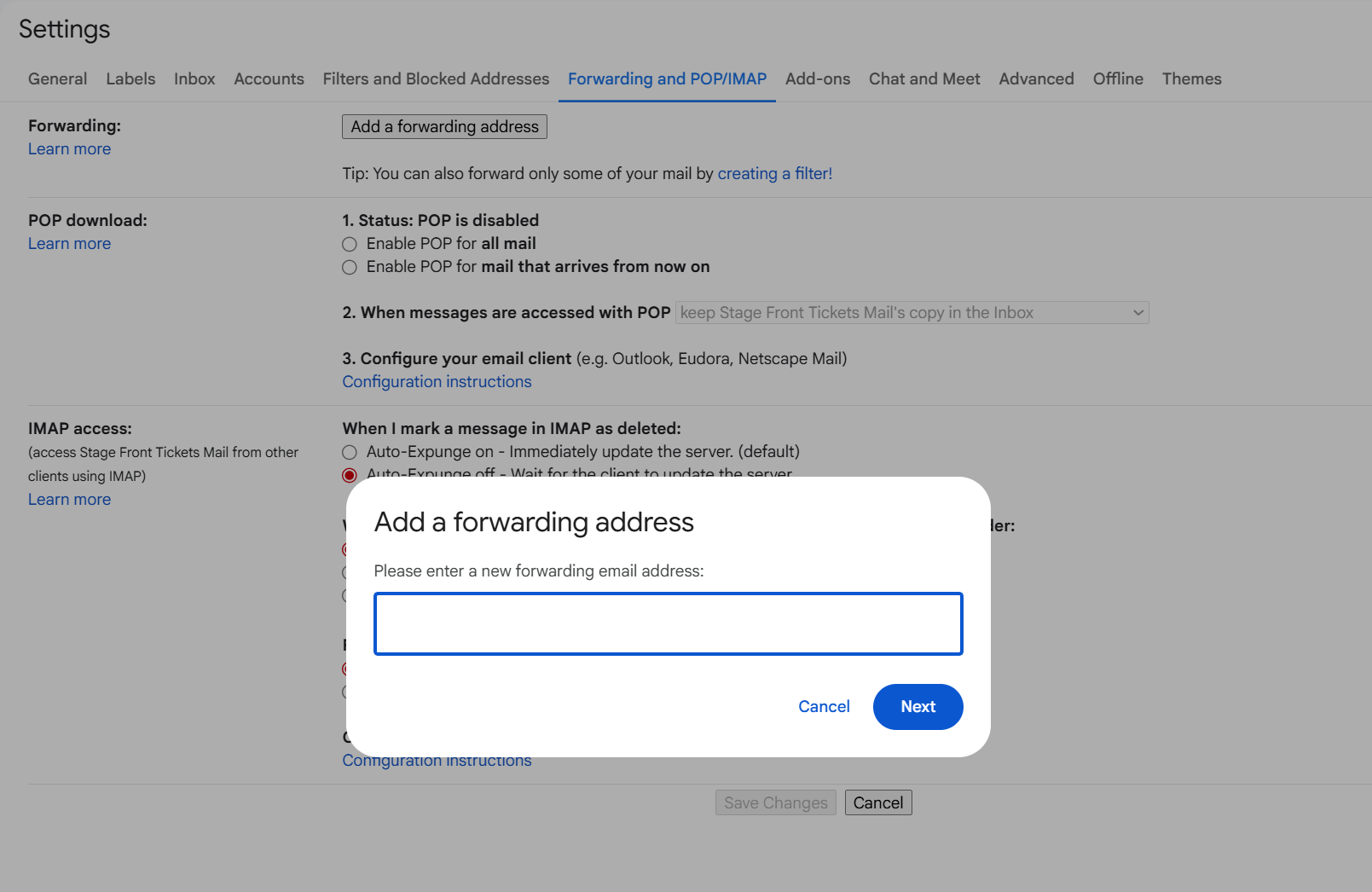
2. Add sendgrid@campaign.stagefront.com as a Forwarding Address. (for Gmail: ‘Settings’ → ‘Forwarding and POP/IMAP’) *Note: This may already be in place due to forwarding authentication codes
3. Our team will confirm the auto-forwarding address within 24 hours. We will send an email to you notifying you that the email auto-forwarding has been confirmed.
Gmail Example
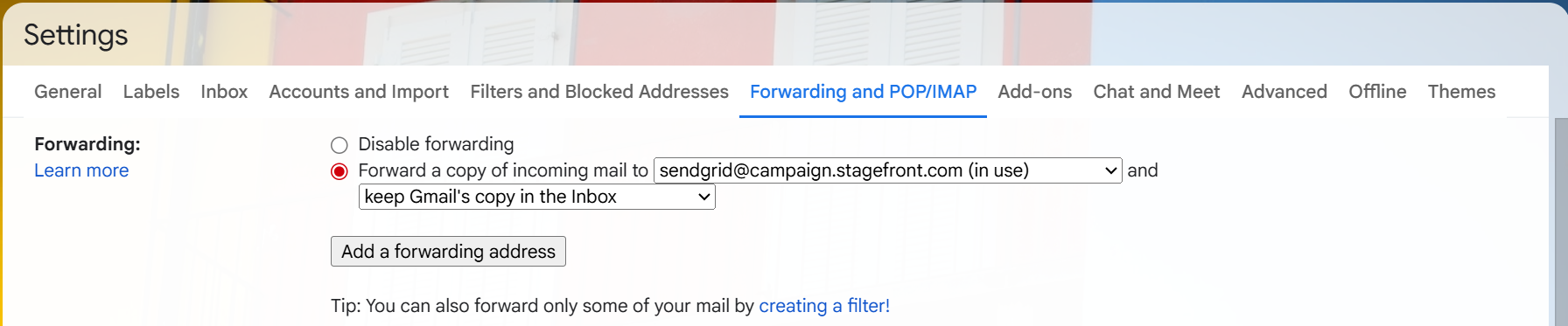
Please note that this may already have been enabled for you. If it is already enabled, it would look like this (using Gmail):
Step 2: Set Up Forwarding Rules:
After confirmation, you may need to enable forwarding. Regardless of whether forwarding is enabled, you will need to set up a new rule.
Enabling Forwarding:
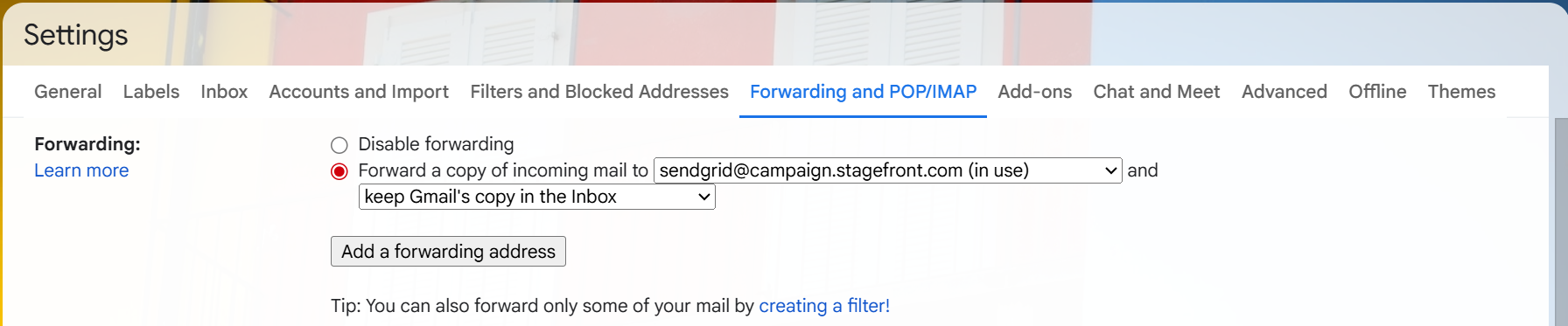
1. Navigate back to your Gmail or email inbox auto-forwarding settings. (for Gmail: ‘Filters and Blocked Addresses’)
2. Check the box to Forward emails.
Gmail Example:
Set up Rule:
Then, you are ready to create a new filter rule to your auto-forwarding settings.
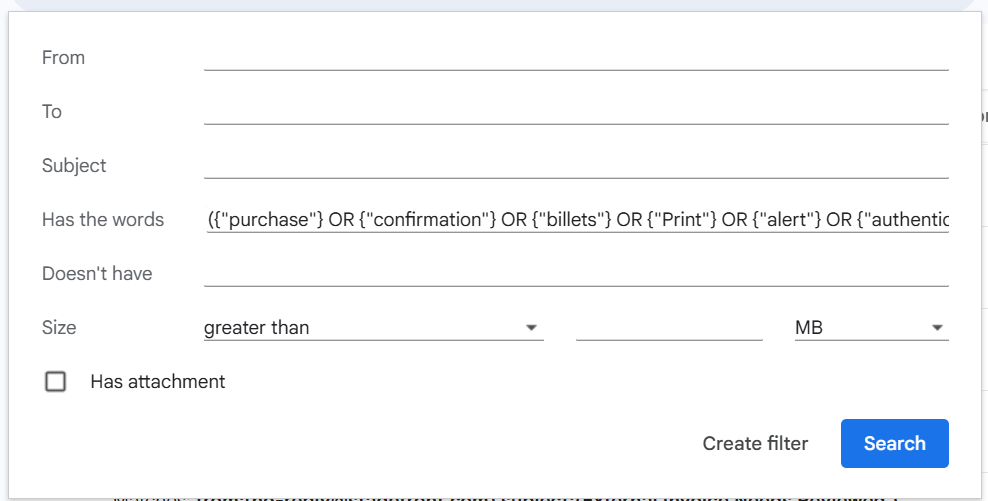
1. Select ‘Create a new filter’
2. Copy the text below as criteria for what is contained in the email (for Gmail: ‘‘Has the words’)
({"purchase"} OR {"confirmation"} OR {"billets"} OR {"Print"} OR {"alert"} OR {"authentication"} OR {"code"} OR {"all set to see"} OR {"purchases"} OR {"ticket"} OR {"tickets"} OR {"Thank You"} OR {"E-Tickets"} OR {"E-Ticket"} OR {"Ticketfly"} OR {"Order"} OR {"cash"} OR {"print"} OR {"ETickets"} OR {"etickets"} OR {"orders"} OR {"Receipt"} OR {"reminder"} OR {"concerts"} OR {"attached"} OR {"concert"} OR {"transaction"} OR {"verify"} OR {"password"} OR {"reset"})
3. Continue to the next screen (for Gmail: ‘Create filter’)
4. Select ‘Forward it to:’ and choose ‘sendgrid@campaign.stagefront.com’ from the dropdown
5. Select ‘Create Filter’
Gmail Example Set up Rule Step 2
Gmail Example Set up Rule Step 4
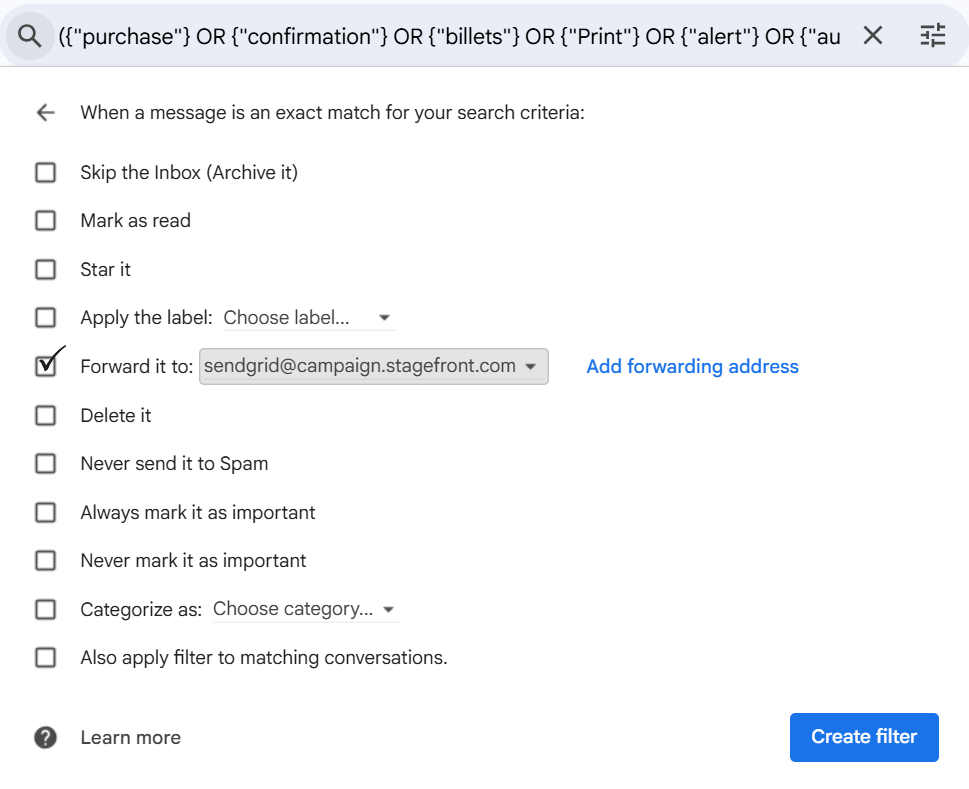
Gmail Example When Steps are Completed

Step 3: Send Us a Confirmation Email
Please let us know when this process has been completed with a quick email to: clientrelations@stagefronttickets.com
Was this article helpful?
That’s Great!
Thank you for your feedback
Sorry! We couldn't be helpful
Thank you for your feedback
Feedback sent
We appreciate your effort and will try to fix the article