TABLE OF CONTENTS
- What is Password Manager?
- Locating Password Manager in the Portal
- Adding Credentials
- Managing and Updating Your Credentials
What is Password Manager?
Password manager is Stage Front’s secure credentials management tool located in the portal. It is important that your password manager is up to date at all times, so fulfillment can be completed quickly.
Locating Password Manager in the Portal
To navigate to password manager in the portal, click the Password Manager button located on the top navigation bar in your portal.

Adding Credentials
Bulk Add Credentials
To bulk add your credentials, click on the Bulk Add Credentials button.

The Bulk Add Credentials window will appear. Download the template.xlsx and vendor_list.xlsx documents.
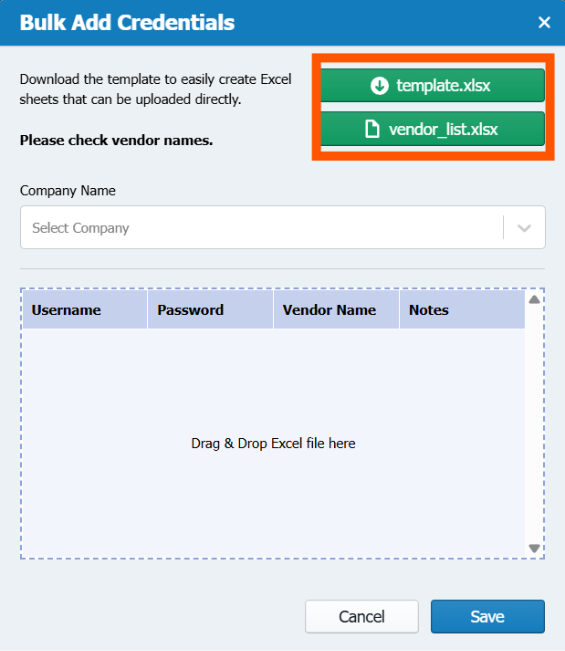
On the template.xlsx document, enter the username, password, vendor name (using the vendor_list.xlsx document to find the system accepted names) and any notes related to the account.
Before uploading the sheet, ensure that your company is selected in the ‘Company Name’ field.
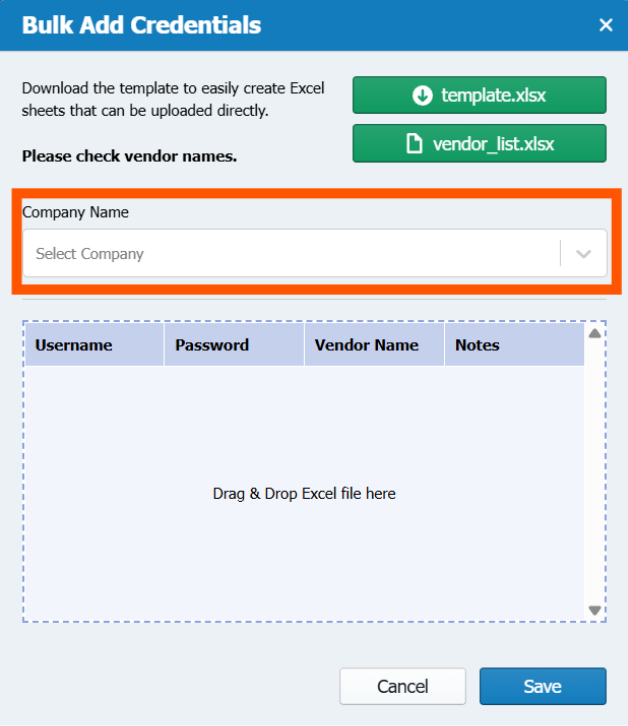
To upload the sheet, drag and drop the excel sheet into the box in the center of the Bulk Add Credentials window.
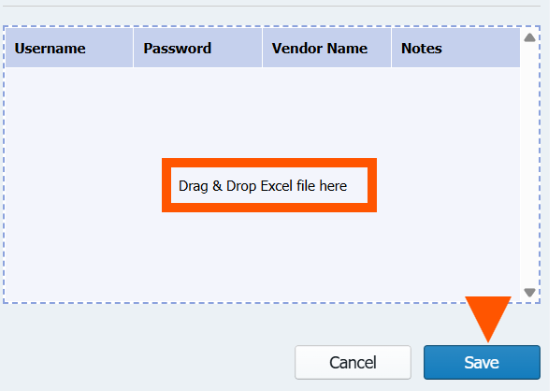
After dropping the excel sheet into the upload box, click ‘Save.’ The credentials will now appear in your password manager.
Add Individual Credentials
To add credentials individually, select the Add New button.

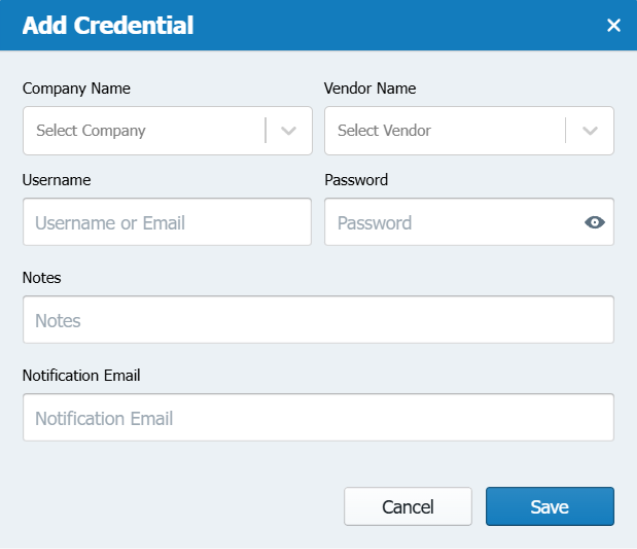
A new window will appear with fields to be entered to add the credential. Select your Company Name if it has not defaulted, and fill in the Vendor Name, Username, Password, any related notes. If you wish to receive notifications when your passwords are updated, fill in the Notification Email with the email address you want to receive the notifications.
Once finished, click Save.
Managing and Updating Your Credentials
On the password manager screen, you have multiple options to manage your credentials.
Updating Credentials
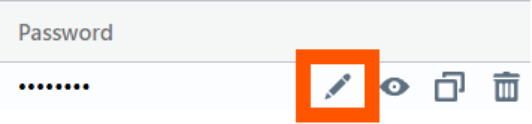
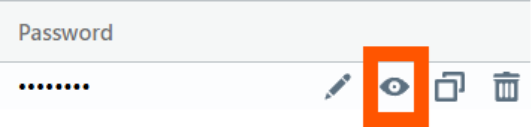
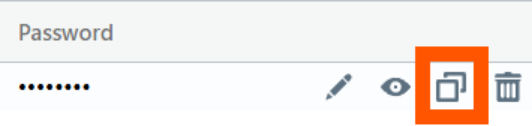
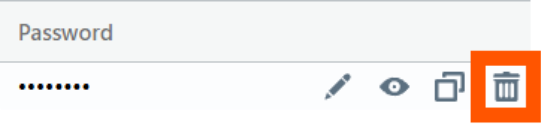
Under the password column, you will find the following options to manage credentials.
Pencil Icon: Edit that line items password
Eye Icon: View password
Paper Icon: Copy password
Trashcan Icon: Delete credential. *This permission is not available to all users.
On the Username column, you will also find a paper icon that can be clicked to copy the username.
Credential Status
The status column will show you the status of the credentials.
Please note that only TM and AXS accounts will be validated. All other vendors will remain in Not Checked status.
There are three statuses:
Valid | Credential has successfully been verified |
Invalid | Credential failed validation and needs to be updated. Action Required: You will need to either update your password or username to re-queue the validation process. |
Not Checked | Credential has not yet been validated. |
Was this article helpful?
That’s Great!
Thank you for your feedback
Sorry! We couldn't be helpful
Thank you for your feedback
Feedback sent
We appreciate your effort and will try to fix the article